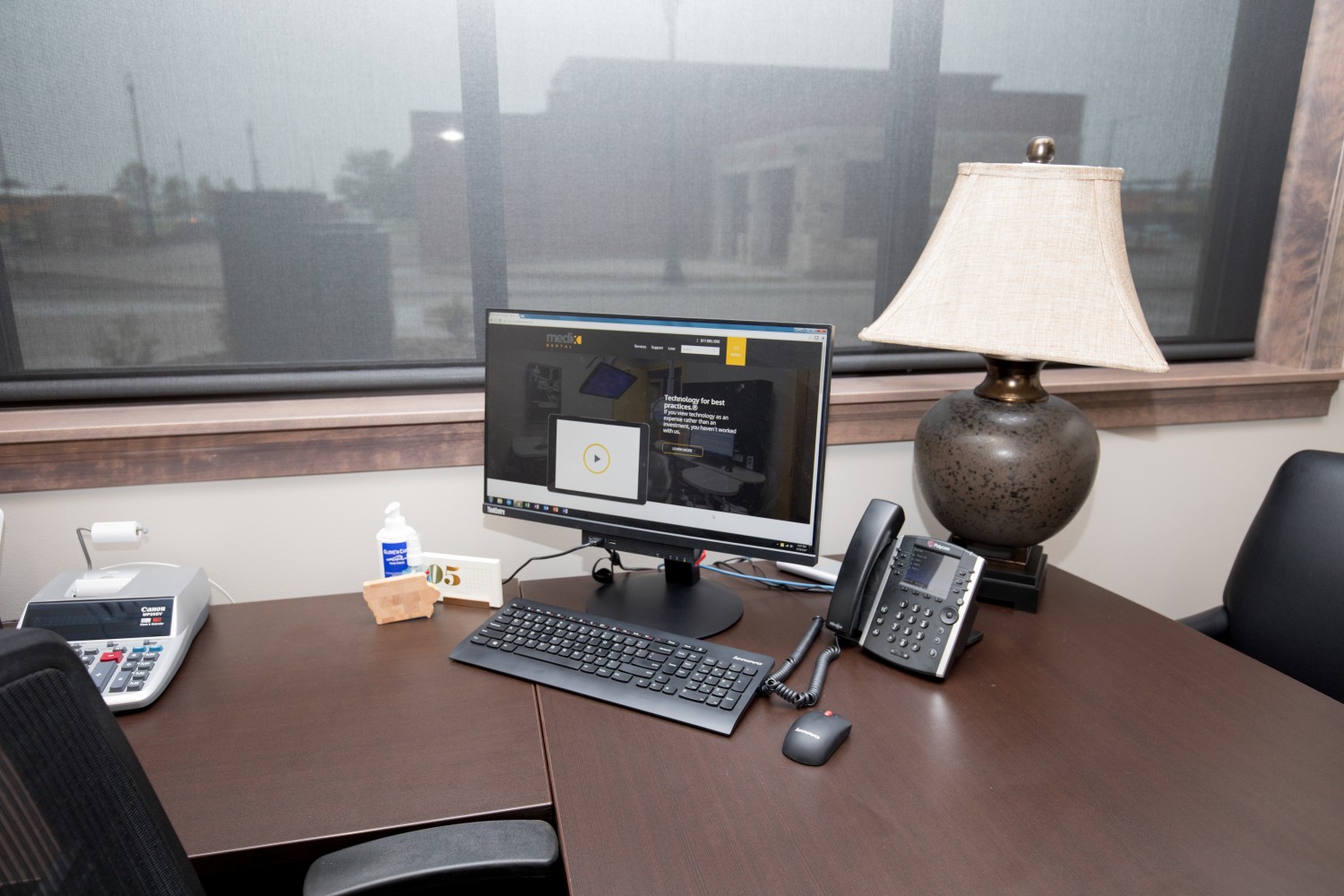

Every dental practice has one workstation everybody avoids. The one in op 3, or the second front desk machine, that takes a breath before it opens a chart.
Slow computers in dental practices are almost never a computer problem. They are a mismatch between what your practice management software actually demands and what the hardware underneath it was specced to deliver. That distinction matters, because it changes the fix from “buy a new computer” to something much cheaper. In our experience, that fix is the answer more often than not.
Why Slow Dental Computers Cost More Than Time
A workstation that takes nine seconds to load a patient chart does not feel like an emergency. It feels like an annoyance. That is exactly why it survives for years.
The math is what gets you. A hygienist opening thirty charts a day, waiting an extra eight seconds each time, loses about four minutes daily. Across six operatories and a five-day week, you are paying salary for a couple of hours of watching a progress bar.
There is a second cost that shows up later. Practices that tolerate slow machines tend to tolerate the reason they are slow, and the reason is frequently an operating system or a piece of hardware that stopped receiving security updates. Microsoft ended free security updates for Windows 10 on October 14, 2025. Any workstation still running it without Extended Security Updates is not just slow. It is unpatched, and it is holding protected health information.
Two things about ESU are worth getting right, because most coverage blurs them. The consumer program, the one with the free sync option, the 1,000 Rewards points, and the one-time $30 charge, now runs until October 12, 2027. That path covers consumer editions such as Home and Pro on personal devices, and it is not the path a managed practice is usually on. Machines running Enterprise or Education, and Pro machines in commercial use, go through volume licensing at $61 per device for the first year, and that price doubles each year for a maximum of three years. Year one started in November 2025.
The part that catches groups out is that the years are cumulative. Buying in during year two means paying for year one as well, so a practice that skipped the first year does not start at the year-two rate. Waiting does not save anything, it just moves the same cost into a larger single invoice while the machines sit unpatched in the meantime. And ESU is narrow by design. It delivers the security updates Microsoft rates as critical and important, and nothing else: no feature updates, no general fixes, and no ongoing technical support beyond help with enrollment and the updates themselves.
Start Here: Is It One Computer or All of Them?
Before anyone touches a setting, answer one question. It splits every slowness problem into two completely different investigations.
If one machine is slow and the rest are fine, the problem lives on that machine. Look at its age, its memory, its storage, and what is running in the background.
If every machine is slow at the same time, the problem is almost certainly the server, the network, or the database. Replacing a workstation will do nothing, and practices spend real money making that mistake.
The most common misdiagnosis we see is a practice buying three new front desk computers to fix what turned out to be an undersized server. New hardware, same nine second chart load.
Why Your Practice Management Software Feels Slow
This is where dental IT stops looking like general IT. Dentrix, Eaglesoft, and Open Dental each fail differently under load, and each publishes its own requirements that most practices have never read. If you are weighing a switch rather than a fix, our comparison of the best dental practice management software covers how these platforms differ before you inherit another set of requirements. If your team is convinced the software itself is the problem, this section is the one to work through.
Dentrix
Dentrix’s 2026 system requirements, published by Henry Schein One in April 2026, set the server minimum at 16 GB of RAM. They add that more memory may be required beyond ten workstations. The January 2024 edition (Dentrix 24.1) asked for 8 GB at ten or fewer workstations, so a server sized to that spec now sits below the minimum.
Practices also grow past ten workstations without noticing. You add two operatories and a second check-in station over three years, and nobody revisits the server. Dentrix also states plainly that requirements “vary significantly depending on workload” and that exceeding the minimums may improve performance. The published minimum is a floor, not a target.
Two more details are worth checking. The 2026 edition lists install space on SSD or NVMe storage: 60 GB free on the server and 20 GB on each workstation. Dentrix also recommends keeping more than ten percent free space on all physical drives. Imaging fills drives faster than anyone expects.
Eaglesoft
Eaglesoft is sensitive to the network, and Patterson says so directly. Their hardware and network requirements state that network hubs “can degrade the performance of your network and directly impact the performance of Eaglesoft,” call for Cat 5e cabling or better, and advise using cabled connections whenever possible and avoiding wireless with Eaglesoft.
That last point is where practices get hurt. A wireless operatory laptop running Eaglesoft can feel slow no matter how new it is. Try a cable before you replace the computer.
Patterson also recommends a dedicated Eaglesoft server at six or more workstations, and does not support Eaglesoft on virtual machines. If someone virtualized your server to save money, that is worth knowing before you troubleshoot anything else.
Open Dental
Open Dental publishes detailed slowness documentation, which is genuinely useful when you are trying to isolate a cause. Their troubleshooting guidance names specific culprits: antivirus and firewall products scanning the wrong things, the A-to-Z image folder being accessed over a VPN, and older 32-bit MySQL 5.5 installations creating what they describe as a processing bottleneck.
They also note that very large clinics with many workstations may need the process signal interval adjusted. Separately, Open Dental’s published requirements state that SSD or NVMe drives are recommended but not required.
The Causes Nobody Checks First
Once you have ruled out the software layer, the rest of the causes fall into a short list. These are ordered roughly by how often they turn out to be the real answer.
Imaging software was never accounted for
This is the most underestimated cause in dentistry. A workstation specced for practice management may not be specced for 3D imaging, and the gap can be large.
Dentrix’s 2026 requirements set a workstation minimum of 8 GB of RAM, with 16 GB recommended. Planmeca’s Romexis 6 requirements list 8 to 32 GB for a 3D imaging workstation, depending on the imaging unit. The Viso G5 and G7 sit at the top of that range, and Planmeca sets a graphics requirement as well. If you put CBCT on a machine that was purchased to run a schedule, it can crawl if the hardware falls short of the imaging requirements.
Mechanical hard drives running a database
Practice management software is a transactional database workload, and that is the worst case for a spinning disk. Microsoft’s Azure storage guidance states that standard HDDs are not suitable for workloads requiring low latency or frequent small block access, and specifically names transactional databases as a workload that belongs on SSDs.
The published storage specs differ. Dentrix’s 2026 requirements list install space on SSD or NVMe, and Open Dental recommends solid state drives. Patterson’s Eaglesoft specification lists 1 TB 7200 RPM drives in RAID for the server and does not mention SSDs there. Check your vendor’s requirements before changing storage on a server.
Machines that are never restarted
Front desk computers in dental offices routinely run for months. Staff lock the screen at night rather than shutting down, because logging back in takes time in the morning. Memory does not get released, updates queue up and never install, and performance degrades gradually enough that nobody connects it to anything. This is the kind of slow decline that shows up in proactive monitoring data weeks before it becomes a complaint.
Antivirus scanning the database
Security software that has not been configured with dental software exclusions will scan practice management database files continuously. Open Dental names this explicitly in their troubleshooting documentation. The result looks exactly like a hardware problem and costs nothing to fix.
What Your Team Can Try, and What Needs Your IT Partner
Not everything on the list above is safe for a front desk lead to attempt during a patient day. This is the split I would give any office manager.
Safe for your team: restart the machine fully, confirm free disk space, check whether the problem affects one workstation or all of them, and note the exact time of day it happens. That last one matters more than people think, because a slowdown that only occurs at 8 a.m. and 1 p.m. usually points at backup jobs or imaging uploads, not hardware.
Call your IT partner: anything touching the server, antivirus exclusions, network hardware, storage changes, or the database itself. These are the causes most likely to be the real answer, and they are also the ones where a well-intentioned fix creates a HIPAA problem or a data loss event.
Whether that partner is an outside firm, someone internal, or a break-fix contractor changes how fast this gets resolved. We broke down the tradeoffs in outsourced IT versus in-house versus break-fix for dental groups.
If you are weighing whether to fix or replace, our guidance on who should buy dental IT equipment covers the procurement side, and the dental practice IT checklist puts workstation health in the context of a full annual audit.
The Part That Actually Matters
A slow computer is a symptom. Treated as a symptom, it gets a new machine and comes back in eighteen months. Treated as a signal, it tells you something specific about your server sizing, your network, or a piece of software nobody configured correctly.
The practices that stop having this problem are not the ones that buy the newest hardware. They are the ones that found out which of the four causes above was theirs.
Slow Dental Computer FAQs
Why is Dentrix slow in our office when the computers are new?
New workstations do not fix a server bottleneck. Dentrix’s 2026 requirements call for 16 GB of server RAM. A server built to the January 2024 edition’s 8 GB figure for ten or fewer workstations falls below that minimum. If every machine is slow simultaneously, the workstation is not the variable. Check server memory, free disk space, and whether antivirus is scanning the database directory before spending anything on new hardware.
Is Eaglesoft slower than other dental software?
Not necessarily. Eaglesoft is sensitive to network conditions, which is a different thing from being slower. Patterson’s own documentation advises avoiding wireless connections with Eaglesoft, warns that network hubs can degrade its performance, and calls for Cat 5e cabling or better. Most Eaglesoft speed complaints we see trace to wireless operatory machines or aging network hardware rather than to the software itself.
Can adding RAM fix a slow dental workstation?
Sometimes, and it is cheap enough to be worth checking first. It can help when the machine runs 3D imaging, since Planmeca lists 32 GB for a Viso G5 or G7 workstation, four times Dentrix’s 8 GB workstation minimum. It will not help if the bottleneck is the server, the network, or a mechanical hard drive holding the database.
How do I know if the problem is our server and not the computers?
Timing and scope. If slowness hits every workstation at once, or clusters at specific times of day, the shared infrastructure is the cause. If one machine is slow while the machine beside it is fine on the same task, the problem is local to that workstation. Document which pattern you see before calling for support. It cuts diagnostic time substantially.
Posted in PMS